

You’re about to unlock the full potential of your streaming devices with a single Smart DNS configuration. This guide will walk you through the process, beginning with understanding what Smart DNS is and why it’s crucial for bypassing geo-restrictions without sacrificing speed. Choosing the right provider is key, and we’ll cover how to ensure your router is up to the task. Once that’s in place, configuring individual devices is a breeze. But what happens if you hit a snag? Stick around to explore practical solutions for common issues that might arise. This Smart DNS Installation Guide will empower you to effortlessly unlock streaming access on all your devices with a single configuration.
Key Takeaways
- Ensure your router is compatible with Smart DNS and update its firmware for optimal performance.
- Configure Smart DNS on your router to provide access to all connected devices simultaneously.
- Adjust DNS settings individually on devices for personalized configurations and enhanced media streaming.
- Regularly clear DNS cache to maintain seamless access and resolve potential connectivity issues.
- Verify firewall settings to prevent DNS request blockages and ensure unrestricted content access.
- Refer to this Smart DNS Installation Guide to ensure your router settings are correctly optimized for the best performance.
Understanding Smart DNS

To truly grasp the concept of Smart DNS, imagine it as a specialized intermediary that manipulates the Domain Name System (DNS) to bypass geo-restrictions without altering your IP address. Before diving into the Smart DNS Installation Guide, it’s important to understand how Smart DNS technology works and its advantages over VPNs.
Unlike VPNs, which encrypt traffic and reroute it through different servers, Smart DNS targets and redirects only the information related to your geographical location, allowing you to access region-locked content seamlessly. This innovation offers several smart DNS benefits, such as maintaining optimal internet speeds since it doesn’t encrypt your data, thus avoiding the bandwidth throttling often associated with VPNs.
However, understanding smart DNS limitations is crucial for making informed decisions. While it excels in providing access to media streaming services without compromising speed, it doesn’t encrypt your online activities, leaving you vulnerable to cyber threats.
Additionally, Smart DNS isn’t effective in circumventing local network restrictions or accessing content in regions with stringent censorship laws. Therefore, while it offers an efficient solution for specific use cases, its utility is contingent on your security needs and the legal framework of your location.
Ultimately, Smart DNS serves as a powerful tool for those prioritizing speed and access over privacy, making it a compelling choice for media enthusiasts.
Choosing the Right Provider

Selecting the ideal Smart DNS provider requires a meticulous examination of various critical factors to ensure it aligns with your specific needs. Start by conducting a thorough provider evaluation, focusing on critical aspects like reliability, speed, and security. Scrutinize their geographical coverage and the diversity of their server locations, as these are pivotal for accessing geo-restricted content seamlessly. This Smart DNS Installation Guide also highlights key criteria for selecting a provider that fits your streaming needs.
Service comparison is crucial; it involves dissecting the features each provider offers. Look for a provider that supports multiple devices, as this flexibility is essential for a comprehensive smart home setup.
You’ll want a service that not only offers robust customer support but also continuously updates its server list to bypass new restrictions.
Evaluate their pricing structure and consider any free trials or money-back guarantees. These can be indicative of a provider’s confidence in their service. Be wary of hidden fees or overly complex pricing tiers that could complicate your user experience.
Additionally, analyze user reviews and expert testimonials to gauge real-world performance and satisfaction levels.
Setting Up on Your Router
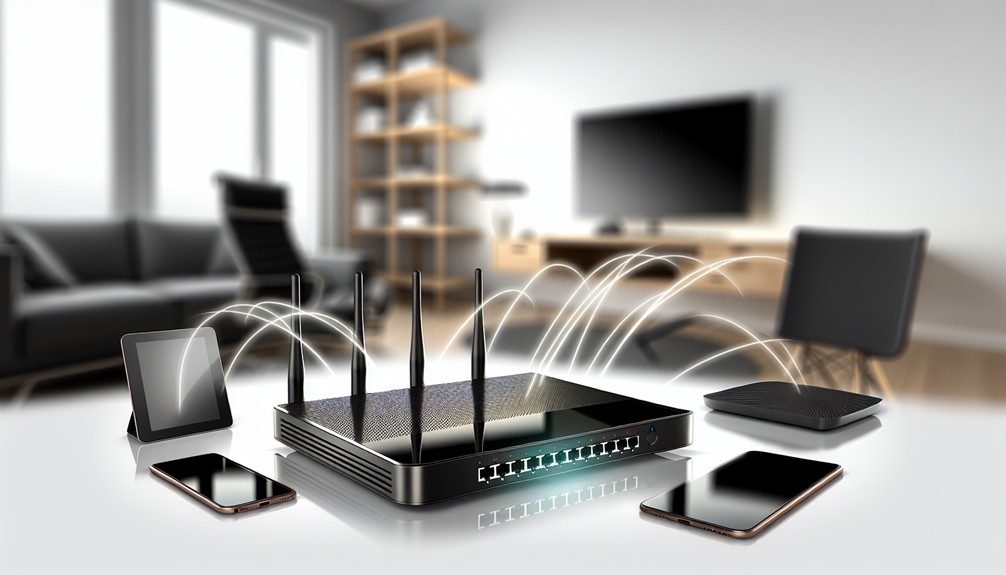
Following this Smart DNS Installation Guide, you’ll learn step-by-step how to configure your router for network-wide Smart DNS benefits. Embarking on the journey of setting up Smart DNS on your router can bring immense connectivity advantages, seamlessly integrating geo-restricted content access into your entire network.
To begin, assess your router compatibility. Not all routers support Smart DNS, so verify that yours is equipped to handle the required configurations. Check your router’s specifications or consult the manufacturer’s documentation to ensure it’s capable of DNS configuration. Updating your router’s firmware is a crucial step in the Smart DNS Installation Guide to ensure compatibility with the latest DNS configurations.
Next, it’s crucial to update your router’s firmware. Firmware updates often enhance router compatibility with new technologies, including Smart DNS. Access your router’s admin panel, usually via a web browser, and navigate to the firmware update section. Download the latest version from the manufacturer’s site if an update is available, and install it carefully, following the instructions provided.
Once your router is primed, input the Smart DNS server addresses. This step varies by router model, but typically involves accessing the DNS settings within the admin panel. Replace the existing DNS addresses with those provided by your Smart DNS service.
Save the changes and reboot your router to apply the new settings. By configuring Smart DNS at the router level, all connected devices benefit, streamlining access to geo-restricted content across your network.
Configuring Individual Devices
The Smart DNS Installation Guide explains how to customize DNS settings on each device, providing maximum flexibility in your setup. Although setting up Smart DNS on your router is an efficient way to extend its benefits network-wide, configuring individual devices offers more granular control and flexibility. This approach allows you to tailor settings to the specific needs and capabilities of each device, enhancing device compatibility and ensuring performance optimization.
By adjusting configurations on a per-device basis, you can maximize the streaming capabilities of smart TVs, gaming consoles, and mobile devices, catering to their unique processing capacities and network requirements.
To begin, identify the device you want to configure and access its network settings. Whether you’re using an Android phone, a PlayStation console, or an Apple TV, each requires a unique pathway to input DNS settings.
For example, on iOS devices, navigate to Wi-Fi settings, tap on your active network, and modify the DNS fields manually. Remember that each device might have different requirements for DNS server addresses, so ensure they align with your Smart DNS provider’s specifications.
Troubleshooting Common Issues

If problems arise during the Smart DNS Installation Guide process, this section will help you identify and fix common setup issues. When configuring individual devices for Smart DNS, you might encounter certain challenges that require troubleshooting to ensure optimal performance. Understanding these issues is crucial for those who crave seamless streaming services and cutting-edge connectivity.
Often, the root of the problem lies in your network configuration. DNS caching can sometimes cause outdated IP address data to interfere with your Smart DNS setup. To combat this, clear your device’s DNS cache to refresh its connection parameters.
Firewall settings can also hinder your Smart DNS from functioning effectively. Check that your firewall isn’t blocking DNS requests essential for bypassing geographic restrictions. Device compatibility is another common concern – ensure your device supports the necessary DNS configurations. As part of the Smart DNS Installation Guide, regularly clearing your device’s DNS cache can prevent connectivity glitches.
Consider these potential issues:
- Slow connection speed: Optimize your network settings to improve streaming quality.
- Restrictive firewall: Adjust settings to allow DNS traffic.
- Incompatible device: Verify that your device supports Smart DNS modifications.
- Geographic restrictions: Ensure your IP address aligns with the desired content region.
- Persistent DNS caching: Regularly clear caches to prevent outdated routing.
Addressing these issues with precision transforms your Smart DNS setup into a powerhouse of digital innovation, ensuring uninterrupted access to your favorite content worldwide.
Conclusion
1By setting up Smart DNS, you’re not just bypassing geo-restrictions; you’re also enhancing your streaming experience across all devices without sacrificing speed. Some might worry about the complexity, but with a compatible router and a few adjustments, it’s straightforward. Plus, you gain the flexibility to optimize individual devices. Remember, the key is in the details – choosing the right provider and fine-tuning settings ensures seamless, buffer-free access to your favorite content globally. By carefully following this Smart DNS Installation Guide, you can enjoy seamless, high-speed streaming access across multiple devices with minimal hassle.